

Prompt length. Prompts have a maximum length. As a rough estimate, about 750 characters of English (around 120 words) fit. The exact limit depends on the wording, and other languages may allow fewer characters. If your prompt is too long, you get an error that tells you how many characters of it fit. This applies whether or not prompt enhancement is on.
Basics
Three inputs shape the result:- Input video: The subject, objects, and scene Lucy can see.
- Reference image: The appearance you want to apply.
- Prompt: What should change and where the change belongs.
Write a clear edit
Describe what should visibly change in the video. Name the edit target and what you want it to look like, rather than relying on mood or abstract ideas alone. A command names the type of edit, such as Swap, Add, or Replace. Start with the command, then name the edit target and the change you want. Natural language works too: prompt enhancement adapts your instruction to the video and any reference image. Include the details that define the edit, such as color, material, quantity, placement, or layering. Describe visible behavior when it matters, such as a bird perching on your shoulder. Avoid asking for a sequence of actions or a reaction at a specific moment, such as the bird taking off whenever you speak. Start with a clear edit, then try combining related changes. For example, change your outfit and the scene around you together. Learn more about compound prompts below.Choose a clear input
Keep the edit target (the person, object, or area you want to change) visible, well lit, and distinguishable from similar objects. Start with steady framing, moderate movement, and consistent focus. Identify edit targets by visible details, such as “the person wearing the red shirt” or “the striped bag on the chair.”Use reference images deliberately
A reference supplies appearance details for your edit. Your prompt identifies what to use and where it belongs.- Use a sharp image that clearly shows the item or scene you want to use.
- Make sure important details are visible and easy to distinguish from nearby objects.
- Name the item, character, scene, or style to use, especially when the reference contains several elements.
- Include colors, materials, shapes, or patterns that matter to the edit.
- Describe only the reference details you want to apply. Include its scene when changing the background.
Prompt templates and examples
Each template starts with a command, shown in bold, followed by placeholders for the edit target and the requested change. Replace the placeholders with your own details. The command words are also bolded in the example prompts. Each example below begins with the unedited input video, with the prompt template below it. Select an example tab beneath the video to see the edited result and its user prompt. Examples that use a reference also show that image.Substitute
Replace a person or animal in the video with a different person, animal, or character. Use Swap to change clothing while keeping the same person.- Original person
- Aquatic dragon
- Robot ballerina
- Racing driver
- Original person
- Aquatic dragon
- Robot ballerina
- Racing driver
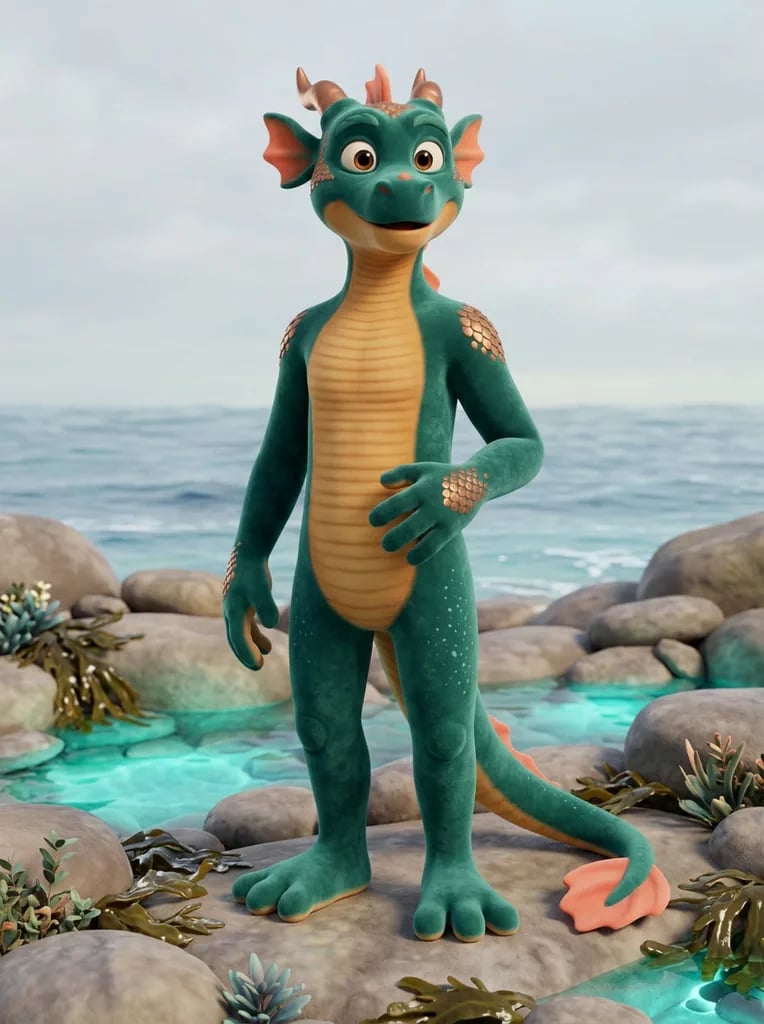
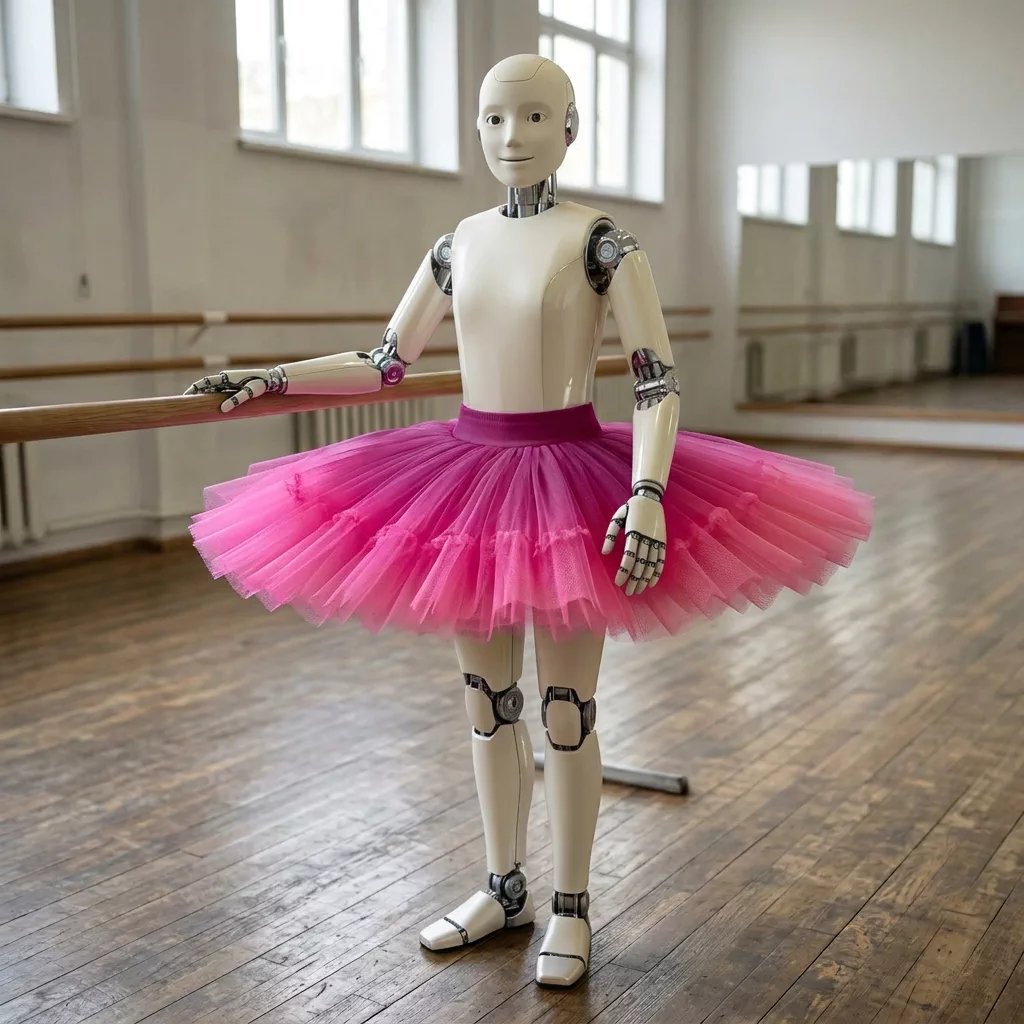

- Describe the character you want, including any defining attire or features.
- Choose a reference that clearly shows the replacement character’s design.
Add
Introduce a new object, creature, or visual effect into the scene. Name the addition and where it belongs.- Original selfie
- Smiley bucket hat
- Chameleon
- Gold chains
- Original selfie
- Smiley bucket hat
- Chameleon
- Gold chains
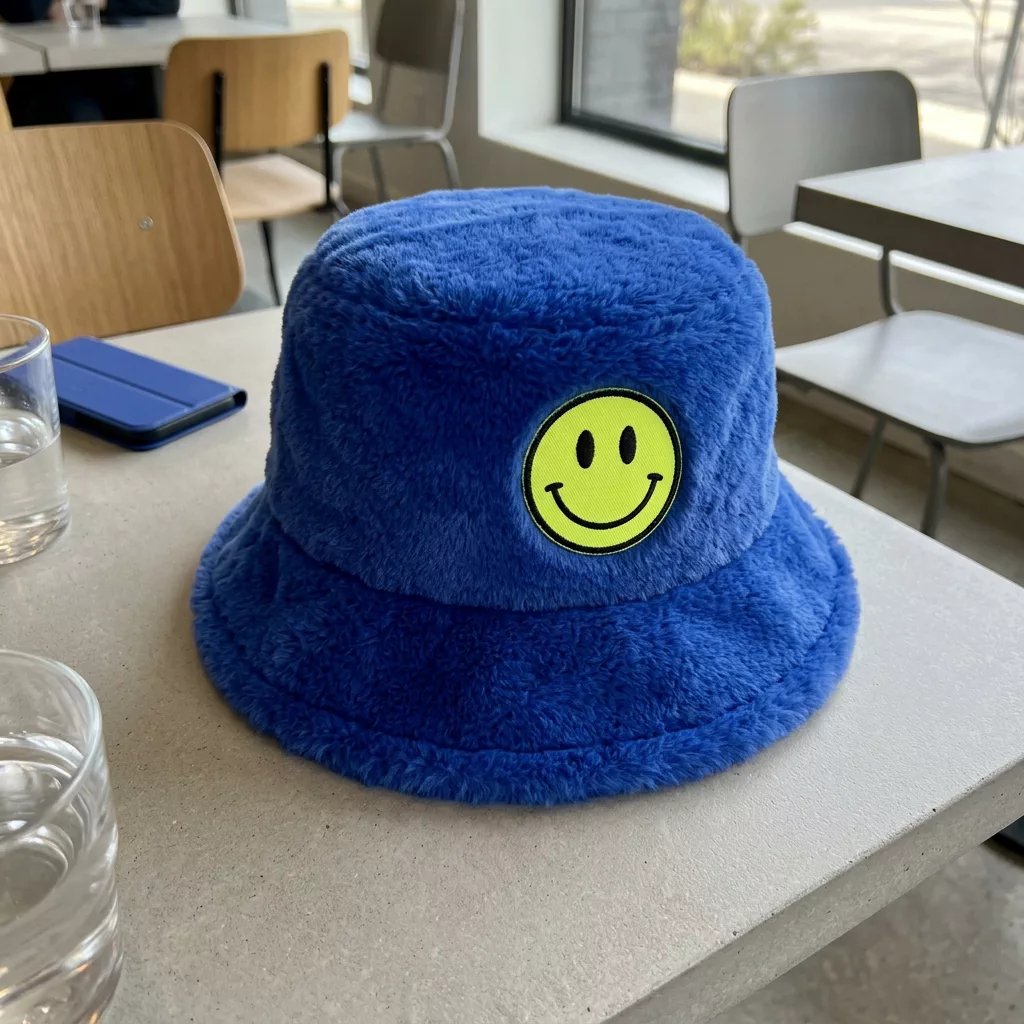
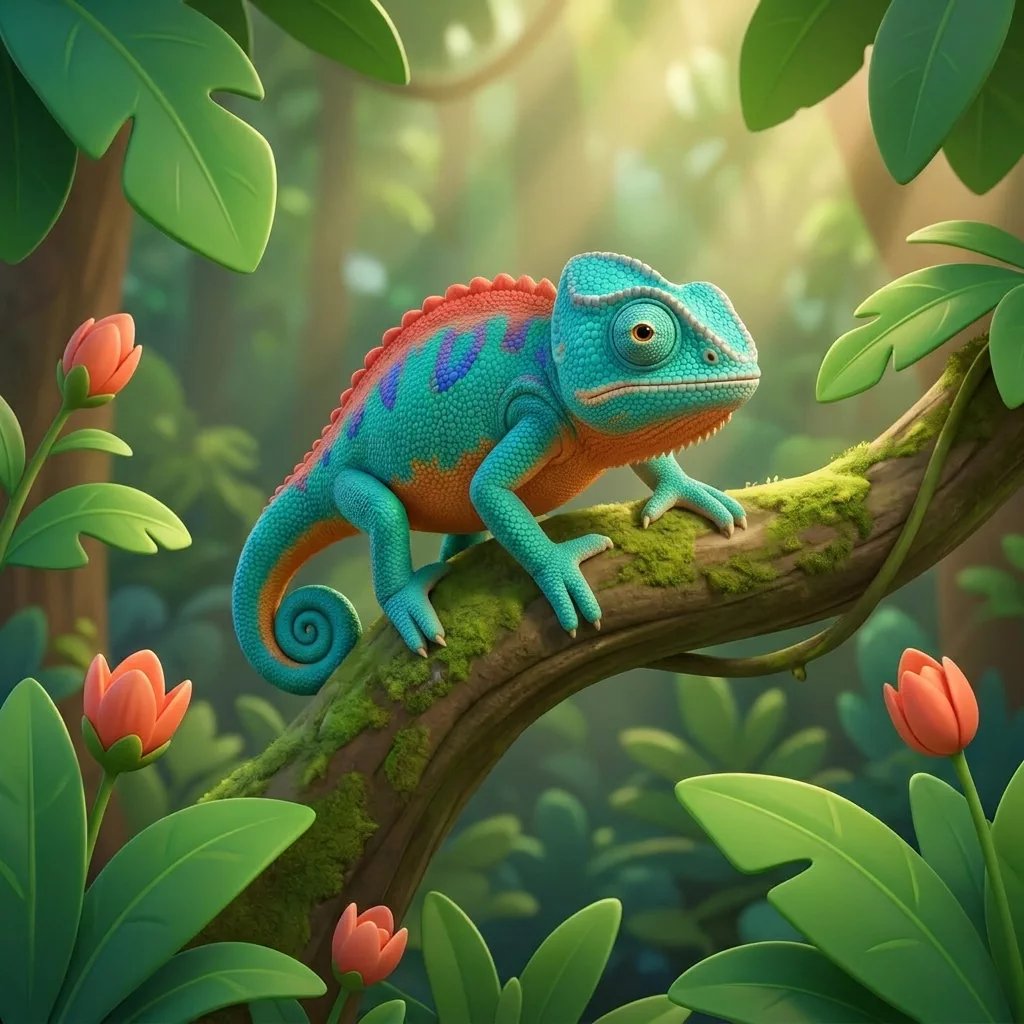
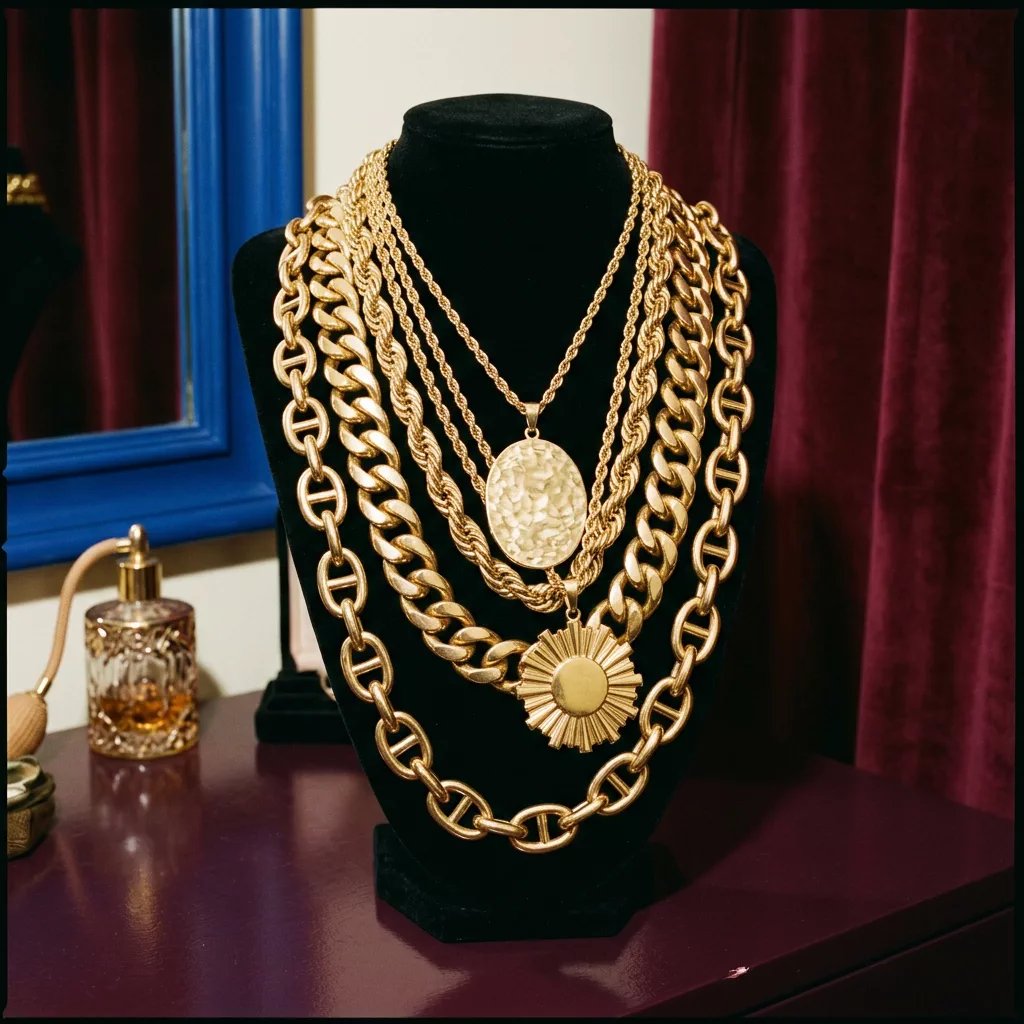
- Say how many items or creatures to add when the number matters.
- Use a reference image to show a particular object or creature design.
Swap
Change a person’s clothes or costume while keeping their visual identity. To replace the entire person with a character, see Substitute.- Original outfit
- Vermilion couture gown
- Sashiko jacket
- Sculptural pleats
- Original outfit
- Vermilion couture gown
- Sashiko jacket
- Sculptural pleats
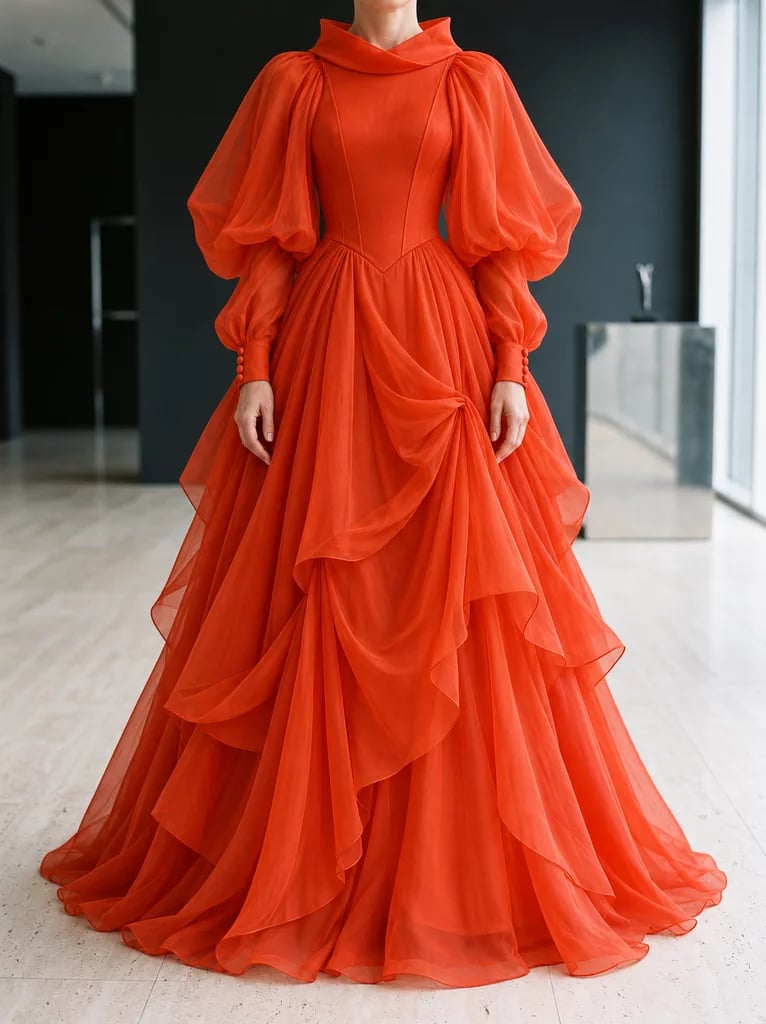
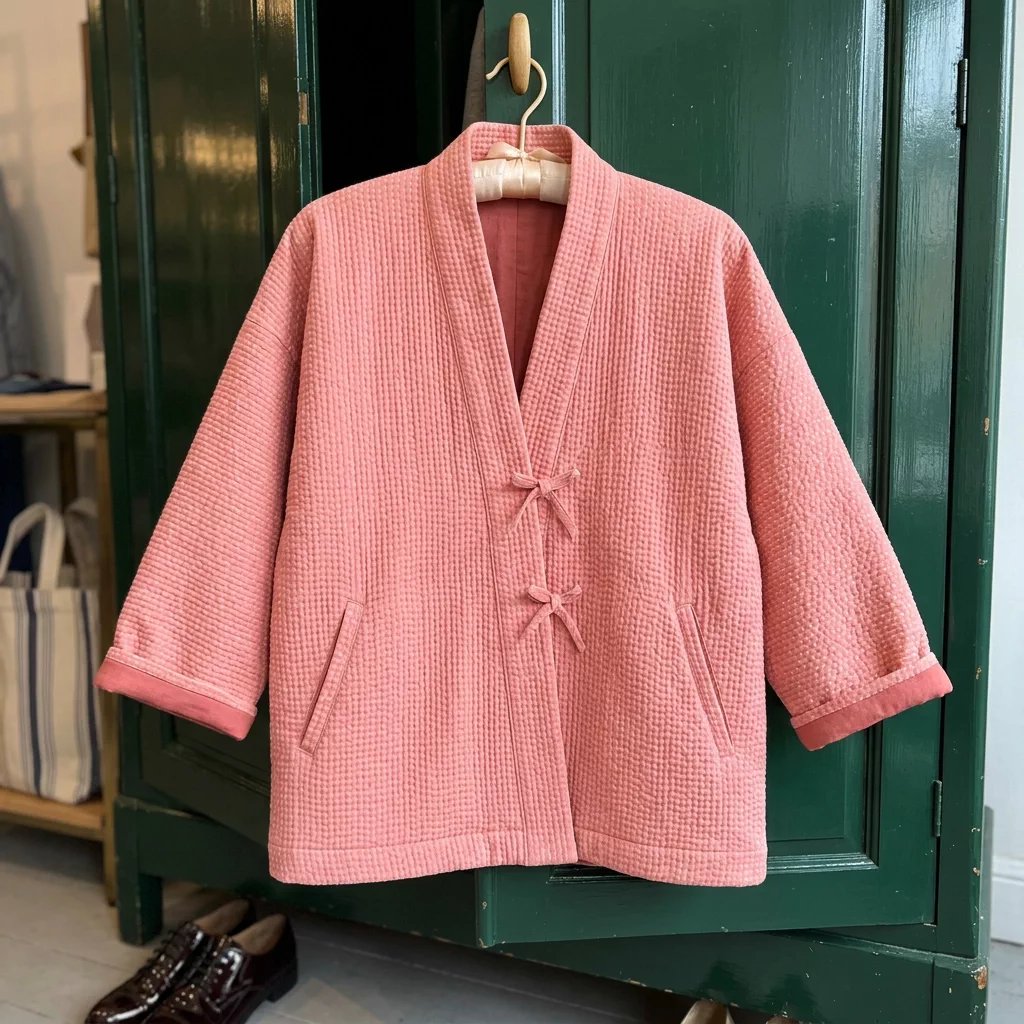
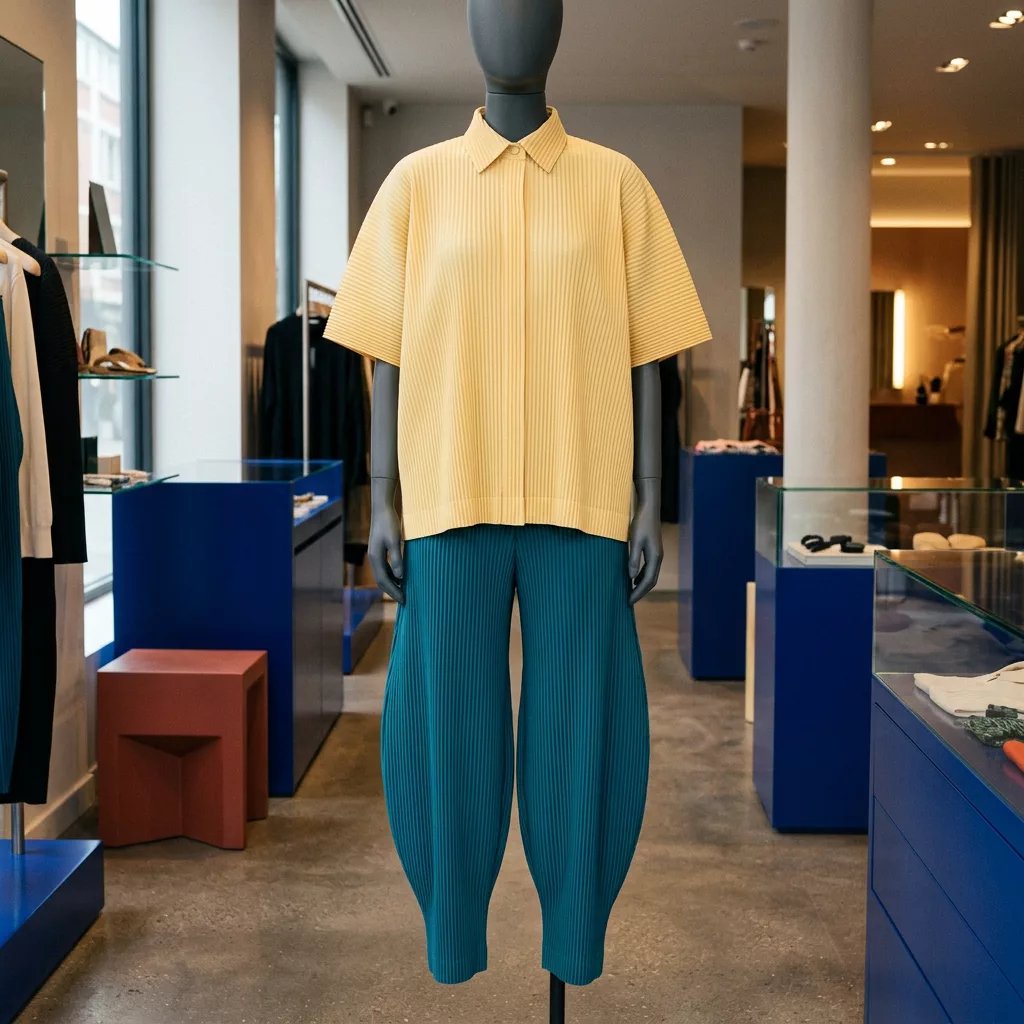
- Name one garment, several specific items, or the complete outfit so the scope is clear.
- Use a reference where the requested garments are easy to distinguish from accessories and neighboring clothing.
Set the background
Replace the scene around the subject while keeping their appearance, clothing, and anything they are holding. To change the appearance of both the subject and the scene, see Restyle.- Original background
- Megacity edge
- Coastal sunset
- Tropical ruins
- Original background
- Megacity edge
- Coastal sunset
- Tropical ruins
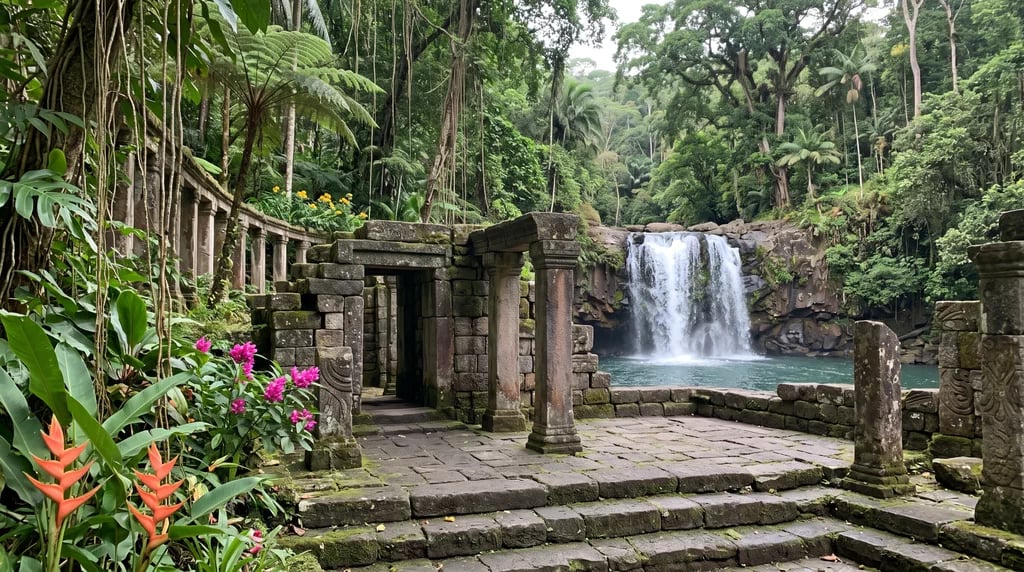
- Describe a complete scene with the details that define it: layout, landmarks, weather, or time of day.
- Use a reference image when you need more realism or a location that’s very specific or hard to describe accurately.
- Keep the request focused on the scene.
- A background reference guides the scene’s appearance. Its layout may change to fit your video’s framing and camera angle.
Replace
Exchange an existing object in the scene for another. Identify the existing object and the replacement.- Original scene
- Aperitif bottle
- Gold and ruby
- Lit candelabra
- Original scene
- Aperitif bottle
- Gold and ruby
- Lit candelabra
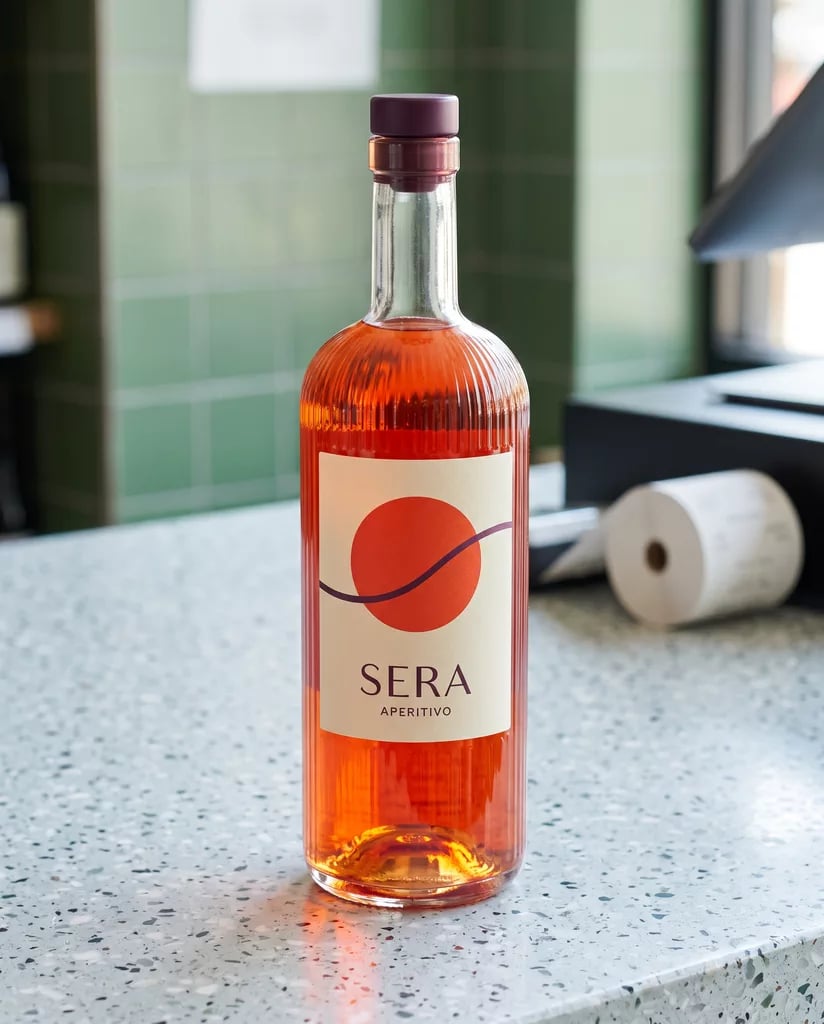
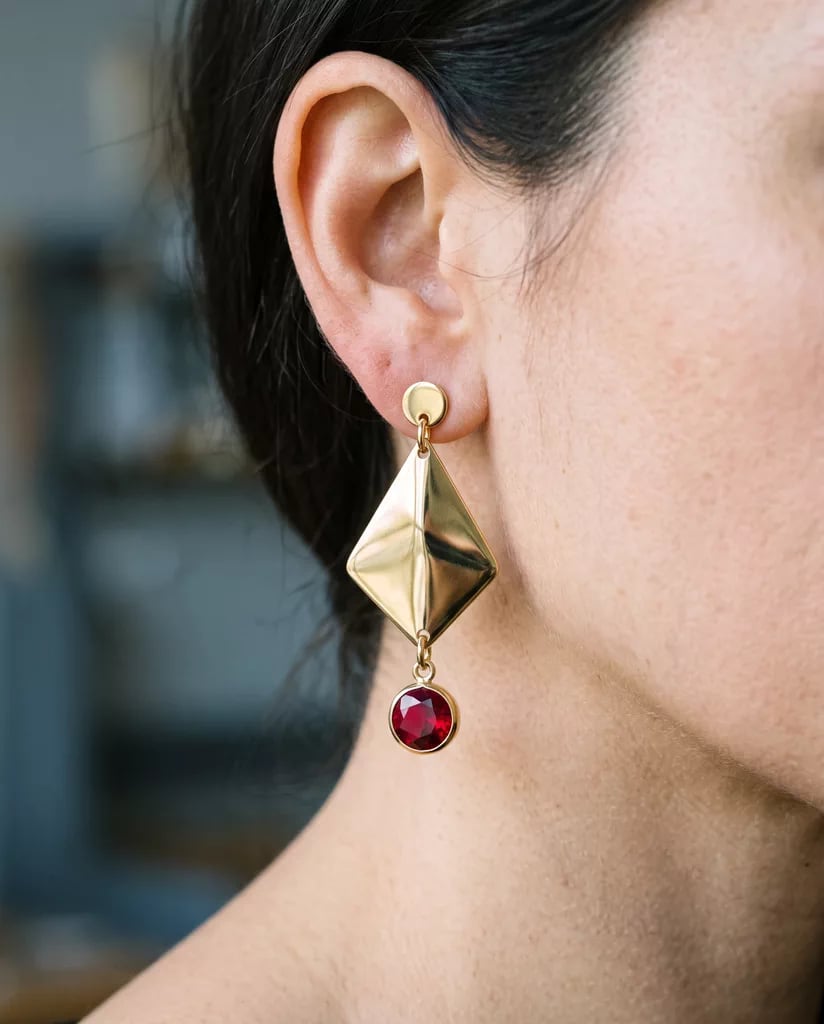
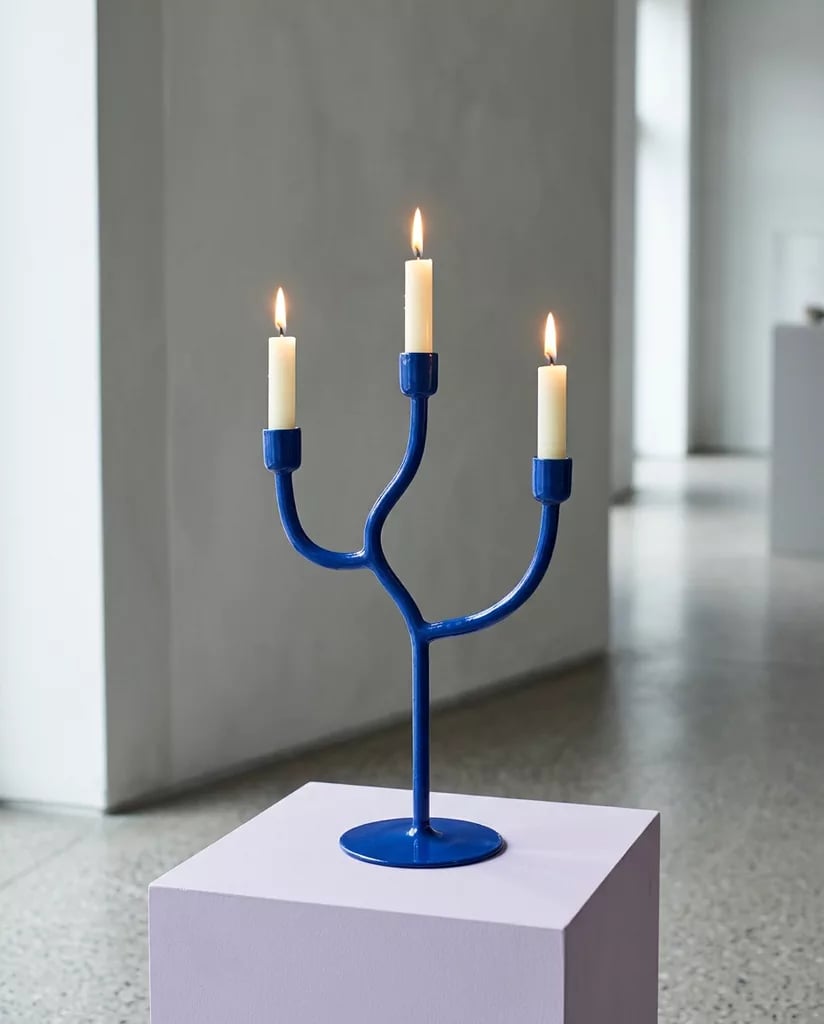
- Identify the existing object by its holder, color, location, or another distinguishing feature.
- For held objects, choose a replacement that fits the visible grip and action, including its scale and orientation.
- A broad object can hide fingers that a narrower replacement would expose.
Remove
Remove an object from the scene.- Original presenter
- Remove mic
- Remove mug
- Remove denim shirt
- Original presenter
- Remove mic
- Remove mug
- Remove denim shirt
- Name any connected parts you also want to remove, such as a microphone’s stand and cable.
- Describe the intended visible area after removal when that helps clarify the result.
Change attribute
Change a person’s features or a property of another element in the scene, such as hair color, surface finish, or pattern. Name the edit target and the attribute you want to change.- Original guitar
- Vivid orange
- Polished gold
- Magenta jelly
- Original guitar
- Vivid orange
- Polished gold
- Magenta jelly
- Name the edit target, the attribute, and the desired appearance. Use natural wording, such as “make my hair blue” or “make the body of my guitar orange.”
- Use color, material, and pattern descriptions to explore different appearances of the same edit target.
Restyle
Change the entire scene’s visual style or turn it into a different kind of world, transforming both the subject and the environment. To replace the background while keeping the subject, see Set the background.- Original scene
- Comic Mars
- Mushroom land
- Ice and snow
- Original scene
- Comic Mars
- Mushroom land
- Ice and snow
- Name a recognizable aesthetic. Add details such as linework, texture, palette, or material when you want more control.
- For a conceptual transformation, describe how the theme appears across both the subject and the environment.
Combine edits
Build a look, transform the scene, or coordinate several elements with one prompt. Name each change and its edit target, then try your own combinations.- Original garden
- Garden workwear
- Indoor arboretum
- Cotton candy elf
- Original garden
- Garden workwear
- Indoor arboretum
- Cotton candy elf
- Name each edit with its command and its edit target separately, even when they share a theme.
- Build on edits that work well for your input, then combine them into a look or scene.